




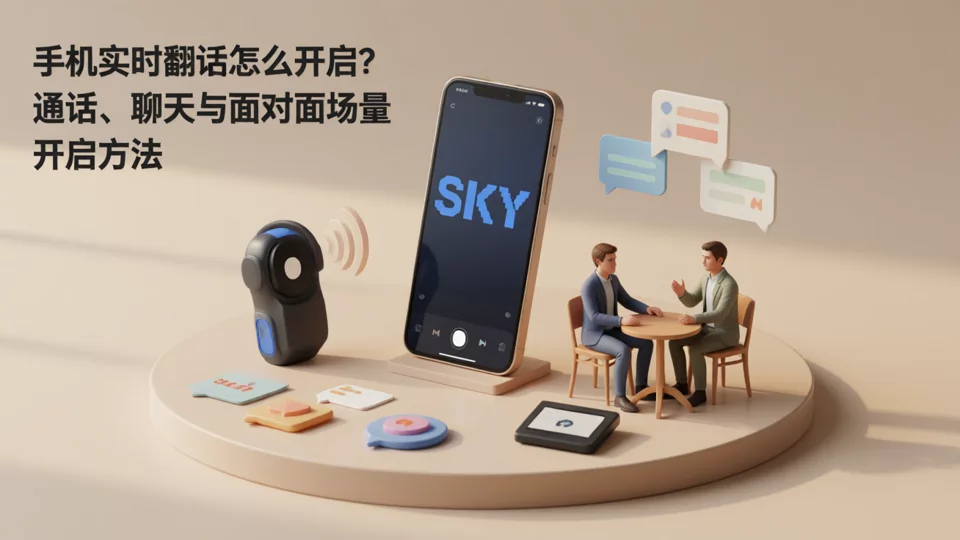
Real-time translation on a phone is not a single switch. Whether you need to translate the audio in a call, the text in a chat, what someone says face to face, or speech in a video meeting, the setting is in a completely different place—if you look in the wrong entry point, you can search through all the settings and still not find that button.
Use the table below to identify your scenario, then go to the corresponding section and follow the steps. The “Common activation location” column in the table is intended to point you in the right direction; item names vary across system versions and apps, so refer to what actually appears on your device.
| Scenario | Translation target | Common activation location | What to check first |
|---|---|---|---|
| Phone calls | Call audio, translation audio | In system phone or translation settings, carrier services, or network calling apps | Whether the current device model and region support native call translation |
| Chat | Text messages | Chat app message menu, input method, and system selected-text translation | Whether the other party sent text, voice, or images |
| Face-to-face | Speech audio and text | The “Conversation” or “Simultaneous interpretation” mode in the translation app | Whether microphone permission is granted and whether the language is specified manually |
| Video conferencing | Convert speech to subtitles and then translate | After the host enables captions, participants select the target language | Does the platform provide only original-language captions, or does it also offer a translation track? |
Real-time translation for phone calls: first confirm whether your phone, carrier, or calling app supports it
There are three distinct paths to call translation, and none replaces the others. First determine which one you need, then enable it in the corresponding place; otherwise, you will keep searching in the wrong menus.
- Native system call translation.Some manufacturers offer this capability in system translation or phone apps, with availability limited by device model, system version, and sales region. Check the translation-related items in system settings or the phone app settings to see whether the option appears; if it does not appear, it is not currently supported.
- Carrier call translation services.Provided by the carrier, it often requires separate activation; supported languages and whether charges apply are subject to the carrier's terms. After activation, enable it during the call rather than looking for it in phone settings.
- Translation in internet calling apps.Apps that make calls over data networks often place the translation toggle on the call screen or in account settings; it works most reliably when both parties use the same app.
After enabling it, make a test call before regular use: say a sentence the other party can verify, and confirm whether they hear your original voice or a translated voice; also check whether microphone permission has been granted to the relevant app, and whether the sound is routed to the earpiece, speaker, or Bluetooth headset.
Not all phones and regions support native call translation. When the system does not offer this option at all, continuing to search through settings is pointless; use carrier services or internet calling apps instead.
Real-time chat translation: use in-app translation first, then consider input method or system translation
Chat scenarios should be split into two tasks: understanding the other person and making yourself understood. When choosing tools, start from the least effortful option and work downward.
- In-app message translation.Long-press a single message; the menu usually includes a translation option, and the translation appears below the original message. This works for one-on-one and group chats. The drawback is that entry points vary across apps, and most voice messages must first be converted to text before they can be translated.
- Input method translation.This handles the messages you send. In the input method toolbar, switch to translation input, type your Chinese text, select the target language, and send. It is suitable for replies, not for reading.
- System selected-text translation.For screenshots, web pages, or messages that cannot be long-pressed, select the text and invoke system translation. It only reads, not writes, and its effectiveness depends on whether the selection is complete.
If your work involves handling accounts across multiple social platforms in one place, long-pressing and translating each message will soon become impractical. SKY SCRM brings messages from multiple platforms and accounts together in one place, supports multilingual communication and AI translation for handling correspondence, and also covers customer management; for the specific range of supported accounts, refer tothe official SKY SCRM websitefor details.
Face-to-face real-time translation: open conversation mode instead of copying and pasting sentence by sentence
- In the translation app, select "Conversation" or "Simultaneous interpretation" mode rather than the text translation input box. This step determines whether the translation is automatically split into two columns and whether speakers are automatically distinguished.
- Manually set the languages for both parties. This is more reliable than relying on automatic detection, especially when sentences contain English words, brand names, or place names.
- Grant microphone permission. A pop-up appears on first use; if you previously tapped Deny, you need to re-enable it for this app in the system permissions—toggling the switch inside the app alone will not work.
- Take turns speaking, pausing briefly after each sentence so the other person can look at the two-column translation on the screen. If both people speak at the same time, the recognition results will overwrite each other.
- To use it without a network connection, download the offline package for the relevant language in advance. Offline packages cover only some languages, and recognition accuracy is usually lower than in online mode.
When results fall short of expectations, it is mostly due to the environment rather than the settings: noisy places, dialect accents, technical terms, and overly long sentences all lower recognition accuracy. Breaking long sentences into shorter ones and speaking closer to the microphone is more effective than switching to another app.
Real-time translated subtitles for video meetings: the host turns on subtitles first, then participants select the target language
Meeting subtitles usually involve two steps that must be done in order: the host or meeting owner enables the subtitle feature so participants have a subtitle track to view, and only then do participants select the target language.
- Host side:In the meeting toolbar or meeting settings, find and enable the subtitles or closed captions switch, and confirm that the meeting language and speaker language settings are correct. If the language is set incorrectly, the translated content that follows will also be wrong.
- Host side:If the platform offers a real-time translation option, specify the target language in the same place, and confirm whether participants are allowed to switch it themselves.
- Participant side:Open the captions button and select the translated language in the caption settings. If you only see a captions toggle and no language options, it means translation is not enabled for this meeting or this account.
When you cannot find the translation option, first distinguish three cases: the platform itself only provides original-language captions; caption permissions are controlled by the host; or mobile has fewer features than desktop, or the account type is restricted. None of these should be solved by repeatedly trying settings; instead, check the feature documentation in the platform's official help center. Sending key topics and terminology to the other party before the meeting is also a more reliable fallback than captions.
No response after enabling, high latency, or the other party cannot hear you: troubleshoot these five items
- Microphone permission.Translation needs audio input. If permission is denied, the interface may still show it as enabled, but there is actually no input. Check the system permissions rather than only looking at the in-app toggle.
- Unsupported language pair.Many tools cover only a limited set of language combinations. If either the source language or the target language is not on the list, no result will be produced; missing offline packages show the same symptoms.
- Network fluctuations.Online translation must first upload the speech or text and then return the result. On a weak network, this manifests as a long 'Translating...' state or captions that skip words or miss sentences.
- Audio routing error.If your Bluetooth headset is connected but the sound comes from your phone's speaker, or the other party only hears your original voice, you usually need to switch the output device on the call screen and confirm the playback channel for the translated audio.
- Version and regional restrictions.An outdated app version, or an account region where the feature is not available, can make the entry point disappear entirely. Update the app and check again; if it is still missing, look up the official support scope.
For calls, add one extra step: ask the other party to confirm whether they hear the translated voice or the original. Some solutions only show the translation on your side and do not change what the other person actually hears.
Frequently Asked Questions
Can the translation built into my phone be used in third-party chat apps?
It depends on whether the system offers selected-text or screen-text translation. Systems with this capability can translate messages in third-party apps, but usually only for reading — they won't send the translation back for you.
Does in-person translation require an internet connection?
Not necessarily, but you need to download offline language packs in advance. Offline mode covers fewer languages than online mode, and recognizes long sentences and technical terms less accurately, so for important conversations it is still best to use a stable network.
The video meeting only has captions in the original language — can I turn on translation myself?
Generally no. Translated captions depend on the language tracks the platform provides, and participants cannot add a layer on their own. Workable alternatives are your device's system live captions, or preparing bilingual key points before the meeting.
Does call translation require the other person to install the same app?
System-native and carrier services do not need it; translation within internet calling apps usually requires both parties to use the same app or the same service, otherwise the other party still hears the original audio.